Realistic phishing simulations don't rely on fake Amazon deliveries or obvious password reset emails. Instead, they imitate everyday workplace emails like scanner notifications, Microsoft 365 comments, Okta security alerts, Google Drive sync notices, and OAuth permission requests. These real-world phishing attacks examples help employees recognize the attacks they're most likely to encounter at work.
Quick gut check: Most people picture phishing emails as fake Amazon deliveries or password reset scams.
The problem? Attackers moved beyond those years ago. Today's phishing emails often look like routine workplace messages employees receive every day.
At a glance, here's how modern phishing simulations differ from the obvious phishing tests many organizations still rely on.
|
Traditional Simulation |
Realistic Simulation |
Why It Works |
|
Amazon delivery |
Scanner notification |
Routine office task |
|
Password expired |
Okta login alert |
Creates urgency without looking fake |
|
HR bonus |
Google Drive comment |
Looks like everyday collaboration |
|
Invoice |
Google Drive sync |
Feels like maintenance |
|
Gift card |
OAuth permission request |
Doesn't ask for a password |
The 5 phishing simulation templates below are based on realistic workplace scenarios rather than obvious scams.
1. The Mundane Internal Notice
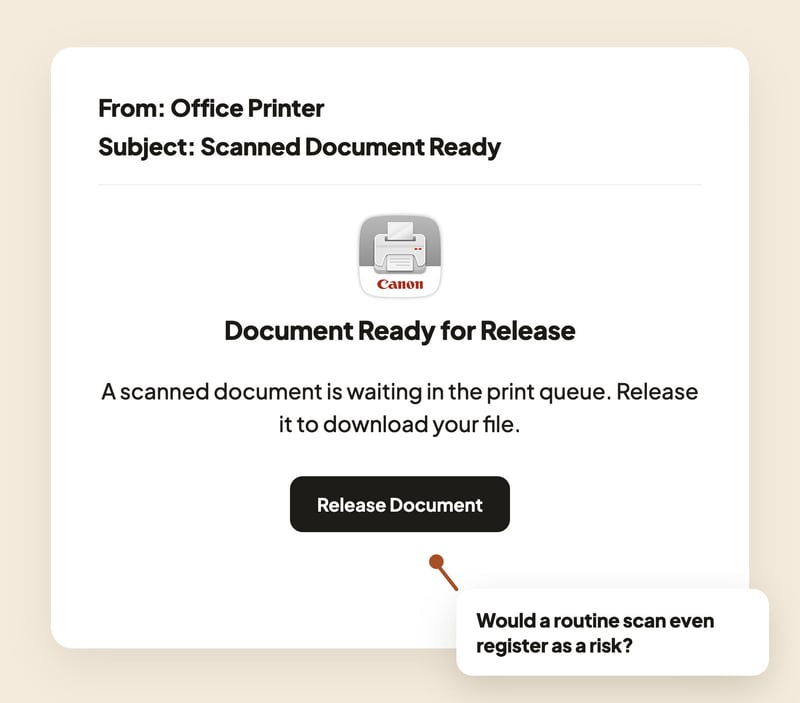
This is the one that doesn't even try. Picture a plain notification from "Office Printer," subject line: Scanned Document Ready. No threat, no countdown, just a routine heads-up that a file is waiting for you to release.
In a busy office, people scan and forward things all day long, so this barely registers as a decision worth questioning. The only tell, if anyone stops to notice, is that they weren't at a scanner that day.
What to look for: A real scan-to-email lands as an attachment, not as a link asking you to log in first. If a "document" needs a sign-in to open, that's the moment to pause.
2. The "Someone Left a Comment" Alert
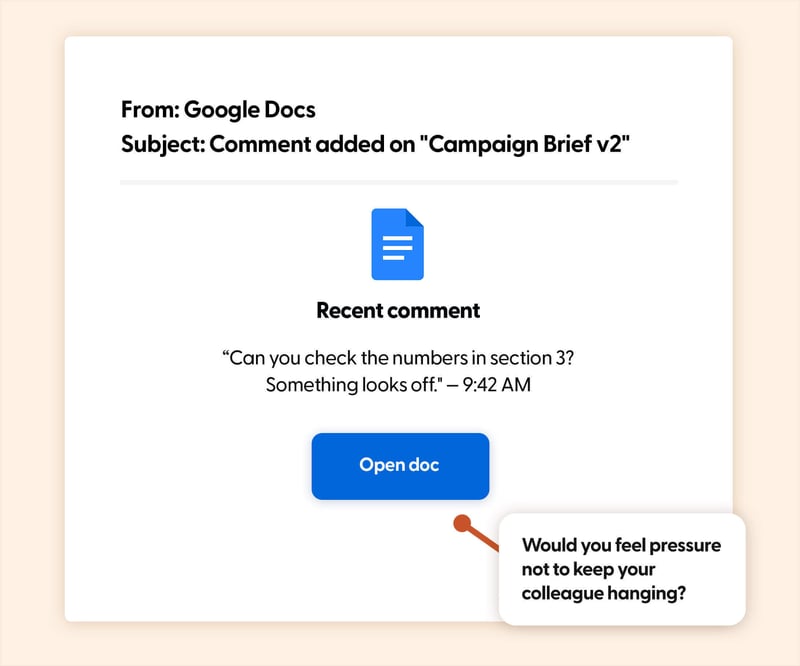
Collaboration tools have trained all of us to respond to comment notifications on autopilot. Clicking is the default.
What makes this one especially convincing is specificity, it references your actual document and names a real colleague, so it feels like part of a conversation already in progress. Attackers can pull that context from LinkedIn, org charts, and other public sources to make the lure hyper-personal.
What to look for: Open the platform directly instead of following the email link. If the comment is real, it'll be waiting for you there too.
3. The Security Alert That Hijacks Your Reflexes
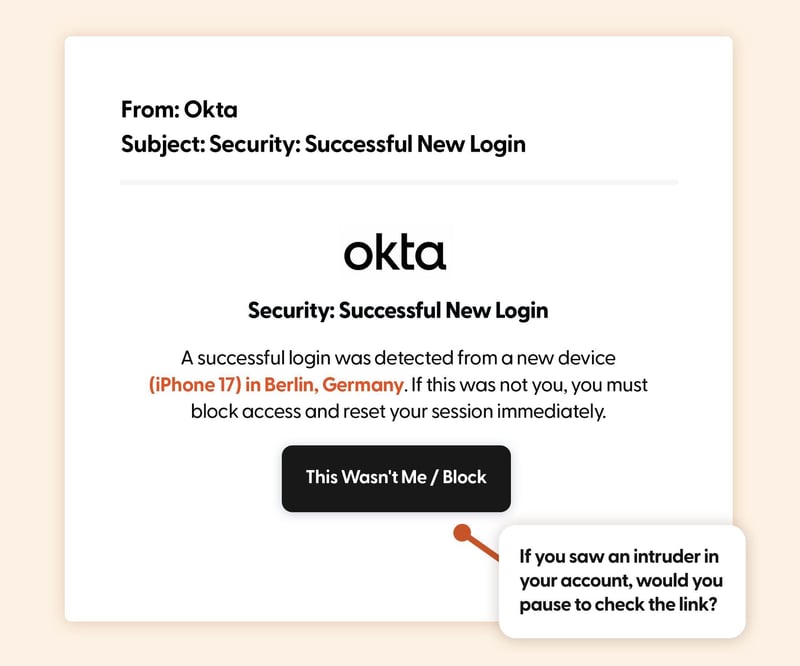
This is the sneaky one, because it weaponizes the exact instinct security training tries to build. An Okta-branded email reports a login from a new device, say, an unfamiliar phone in a city you've never been to, and gives you one button: block access now.
There's no question asked, just a directive. Because you're already in "shut this down" mode, you're far less likely to slow down and check the link before entering your credentials.
What to look for: Go to your identity provider directly through a bookmark or app, never through a link in the alert itself, even when the alert looks completely legitimate. A real suspicious login will still be there to deal with sixty seconds later.
4. The Quiet Maintenance Nudge
.jpg?width=800&height=667&name=googledrive-phishing-simulation-April-2026%20(1).jpg)
Nobody gets adrenaline from a sync error. That's exactly the point. An email styled like a Google Drive notice warns that some files haven't synced correctly and suggests you "resume sync" to avoid losing recent changes. Calm tone, mild implication that something might break if you ignore it. It reads like housekeeping, not a threat, so it slides right past the mental filter most people reserve for "urgent" emails.
What to look for: Sync and storage issues get checked inside the official app itself, never through an emailed button. If the tone feels like maintenance, that's worth a second look, not less scrutiny.
5. The Permission Request That Skips Your Password
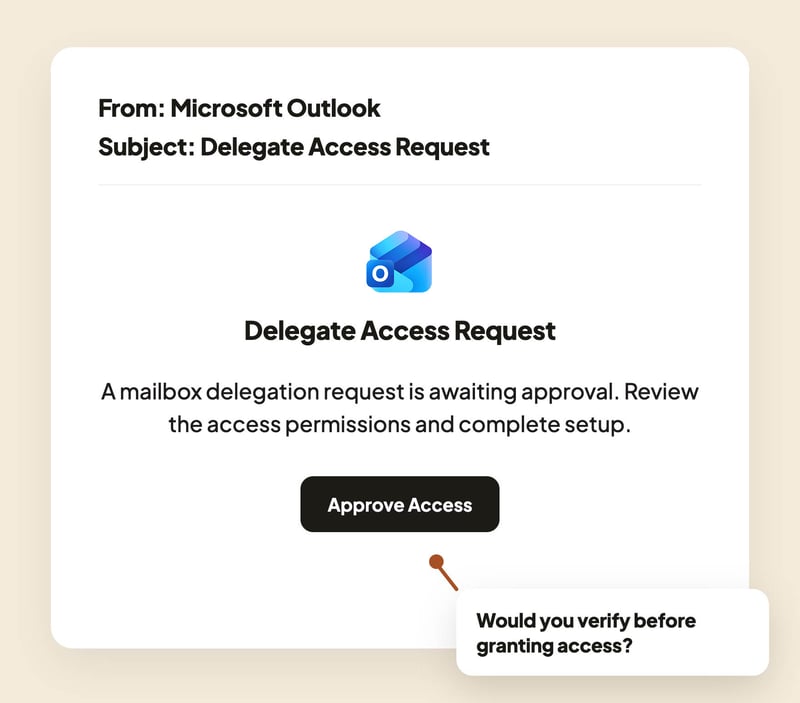
This one doesn't even need you to type a password to do damage. It shows up styled as a mailbox delegation request, maybe framed as setting up coverage before a colleague's leave and asks you to approve access. Instead of a login page, the link leads to a real-looking OAuth consent screen. Approve it, and you've handed a malicious app ongoing access to your email, calendar, and contacts, all without ever "giving away" a password.
What to look for: Treat any unexpected permissions or access-approval screen with the same suspicion as a login page, because functionally, it's worse. Verify delegation or access requests through a known channel, like a quick check with the colleague or IT, before clicking approve.
What We've Seen
Organizations often perform well on obvious phishing tests like fake Amazon deliveries but struggle with routine workplace notifications such as scanner emails, document comments, and OAuth approval requests because those blend into daily workflows. Here is a list of the best phishing simulation tools 2026
Want to run realistic phishing simulations like these?
Wizer includes hundreds of phishing templates based on real attacks, including internal notifications, Microsoft 365 emails, Google Workspace alerts, collaboration tools, AI scams, and OAuth permission requests. Instead of testing employees with obvious scams, you can measure how they'd respond to the phishing emails attackers actually use today.
What Security Professionals on Reddit Agreed On
A recurring theme across discussions among security professionals is that the best phishing simulations aren't the most dramatic—they're the most ordinary. Instead of fake prizes or unbelievable account alerts, practitioners consistently recommend testing employees with scanner notifications, collaboration tool comments, document-sharing requests, and identity-provider alerts because those mirror the emails attackers increasingly imitate.
FAQs
Q: What is a phishing simulation email?
A phishing simulation email is a realistic but safe email sent by your organization to test whether employees can recognize phishing attempts. It helps identify risky behaviors and reinforces security awareness through hands-on learning.
Q: How often should companies run phishing simulations?
Most organizations benefit from running phishing simulations at least once a month. Regular testing keeps employees alert to new phishing tactics and helps build lasting security habits.
Q: What makes a phishing simulation effective?
The most effective phishing simulations mimic real-world attacks employees are likely to encounter, such as package delivery notifications, password reset requests, HR updates, invoices, or AI-related scams. Simulations should also include immediate training when someone clicks or submits information.
Q: Should employees be told about phishing simulations?
Yes. Employees should know that phishing simulations are part of the company's security awareness program, but they shouldn't know when a specific simulation will occur. The goal is to reinforce learning, not to trick or embarrass employees.
Q: Can phishing simulations reduce security incidents?
Yes. When combined with ongoing security awareness training, phishing simulations help employees recognize suspicious emails before they become real security incidents. Over time, organizations often see improved reporting rates and fewer successful phishing attacks.